How to Use Safety Check-Ins for Commutes, Walks, and Daily Routines
How to Use Safety Check-Ins for Commutes, Walks, and Daily Routines
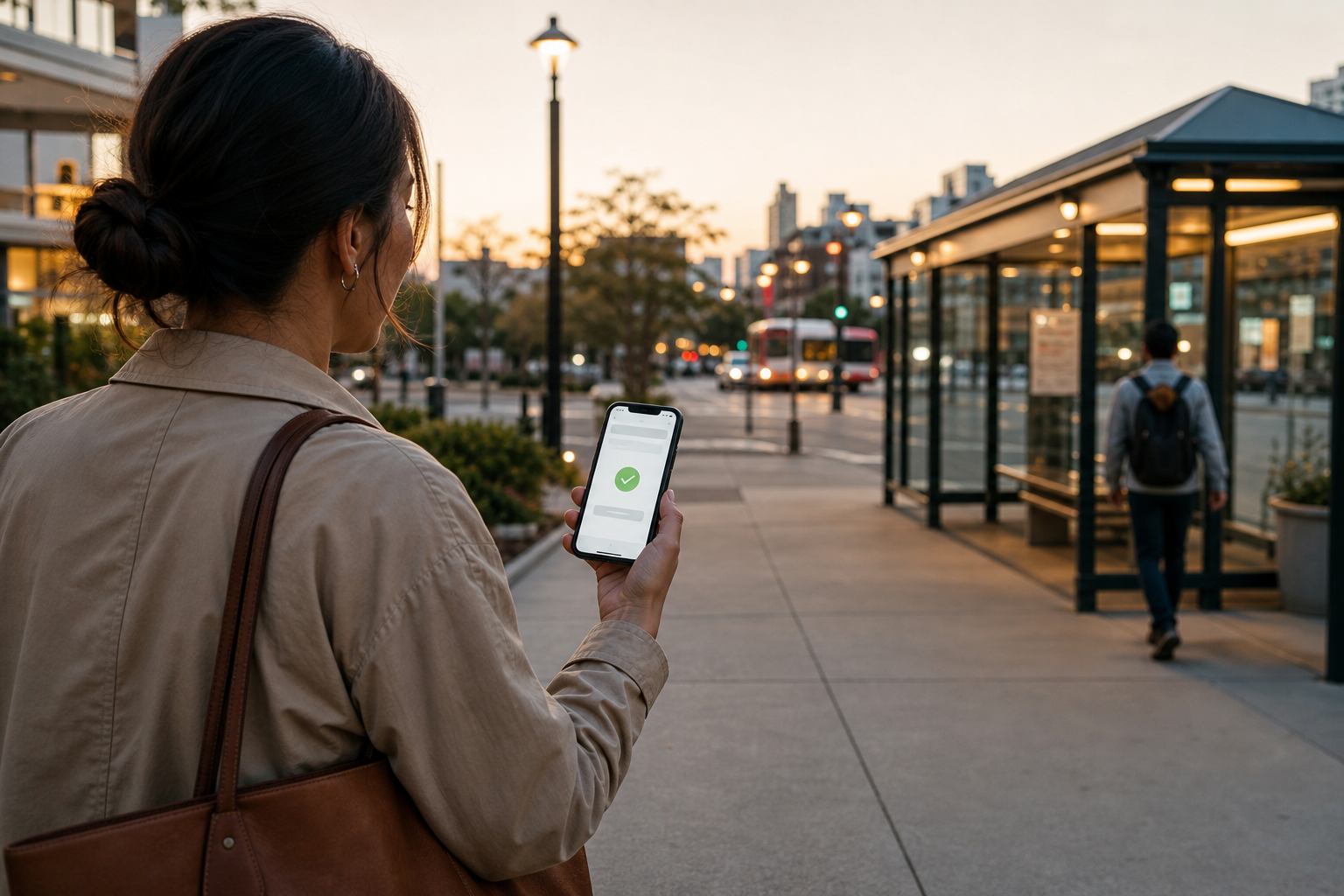
Not every safety update is an emergency. Sometimes you simply want a chosen person to know that you reached the train, arrived at work, or got home after a walk. A safety check-in can make that routine easier to manage without asking family or friends to watch a live map all day.
ProtectSmartly is an iPhone app with check-ins, SOS alerts, location tools, and other safety features. Android is in development. SOS & Safety Alerts is not a replacement for calling emergency services. In an emergency, call your local emergency number.
Choose the moments that matter
Start with a short list of routines that would benefit from a clear update. That might be a late commute, a regular walk, a child’s trip between two familiar places, or the first and last part of a work shift. The goal is not to report every movement. It is to create a simple point of contact when someone would reasonably wonder whether you arrived.
Think about the person who should receive the update and the moment when it will be useful. A check-in for an evening walk may make sense when you leave and when you return. A check-in for a commute may make more sense at the destination. Choose a routine you can follow consistently, rather than building a plan that is difficult to remember.
Decide who should receive a check-in
ProtectSmartly lets you send a check-in to chosen contacts, or save the check-in to your history only. That distinction matters. A history-only check-in can help you keep a personal record without sending an update to another person. A contact check-in is for an intentional update to the people you select.
Before relying on the feature, review your chosen contacts and make sure they understand what a check-in means. It should mean that you are sending a routine update, not that an emergency response has been requested. Keep the group small enough that the right people will recognize the update and know when it is relevant.
Make your check-in language clear
Use a simple habit: send the check-in when you reach the point you have chosen. You do not need to add a dramatic explanation to an ordinary update. A consistent check-in tells the recipient that the routine step has happened. If your plans change, communicate that separately through a channel you already use with that person.
Check-ins are different from SOS alerts. If you need to use SOS in ProtectSmartly, press and hold the SOS button for 3 seconds. A 5-second countdown follows, and you can cancel during that countdown. If the alert is sent, chosen contacts receive your GPS location by email with a map link, and contacts who use the app can also receive a push notification.
SOS & Safety Alerts is not a replacement for calling emergency services. In an emergency, call your local emergency number.
Check permissions before you need them
A check-in plan only works as expected when the app has the permissions and connection it needs. Review your device permissions, battery level, and connectivity before starting a routine. Also confirm that your selected contacts and their notification settings are current. Alert delivery depends on device permissions, connectivity, battery, and recipient availability.
These checks are especially useful before an unfamiliar commute or a long walk. Sign-in is available with email, Sign in with Apple, or Google. Use the sign-in method you selected consistently, and make sure you can access the account before you are away from home.
Use check-ins alongside a simple personal plan
A check-in is one part of a routine, not the whole routine. Decide where you are going, when you expect to arrive, and which person you will contact if plans change. Keep your phone charged, and know how to reach local emergency services directly. If a situation is urgent, do not wait for a check-in workflow to substitute for calling the appropriate local number.
You can also use other ProtectSmartly tools for context when they fit your plan. On iPhone, the Family map can show live positions for family members who accept location sharing, along with battery, speed, and status. Safe places can mark locations such as Home, School, or Work. Those features are separate from a check-in and should be set up according to the sharing choices of the people involved.
Review the habit, not just the feature
After a week or two, ask whether the check-in timing is useful. Are the updates going to the right people? Is history-only better for some routines? Does the habit add clarity, or has it become another notification that people ignore? Adjust the routine based on what works for you and your chosen contacts.
ProtectSmartly can provide practical tools for routine updates, but no app can guarantee that an alert or check-in will be received. Keep your permissions, battery, connectivity, contacts, and sharing settings in view, and use local emergency services when an emergency requires them.
Important: SOS & Safety Alerts is not a replacement for calling emergency services. In an emergency, call your local emergency number.