How to Organize Emergency Information and Trusted Contacts Before You Need Them
How to Organize Emergency Information and Trusted Contacts Before You Need Them
In a stressful moment, small details can be difficult to recall. Blood type, allergies, a family member’s phone number, or the person who should receive an update may not be easy to find when you are distracted. A short preparation session can make your own safety information easier to review and help you decide who belongs in your trusted circle.
ProtectSmartly is an iPhone app that includes Emergency info, trusted contacts, chat, check-ins, SOS alerts, and other safety tools. Android is in development. SOS & Safety Alerts is not a replacement for calling emergency services. In an emergency, call your local emergency number.
Start with the information you would want nearby
ProtectSmartly’s Emergency info can include blood type, age, height, weight, and allergies, and it can be shown on the Home screen. Enter details carefully and review them when something changes. An old allergy or incorrect measurement is less useful than a current record, so treat this as information to maintain rather than a one-time form.
Only add information you are comfortable storing in the app, and review the current privacy and account controls before relying on any digital record. The product brief confirms the listed Emergency info categories; it does not establish every privacy, retention, deletion, or access rule. Those details need to be confirmed in the live app and its current policy.
Choose contacts for a reason
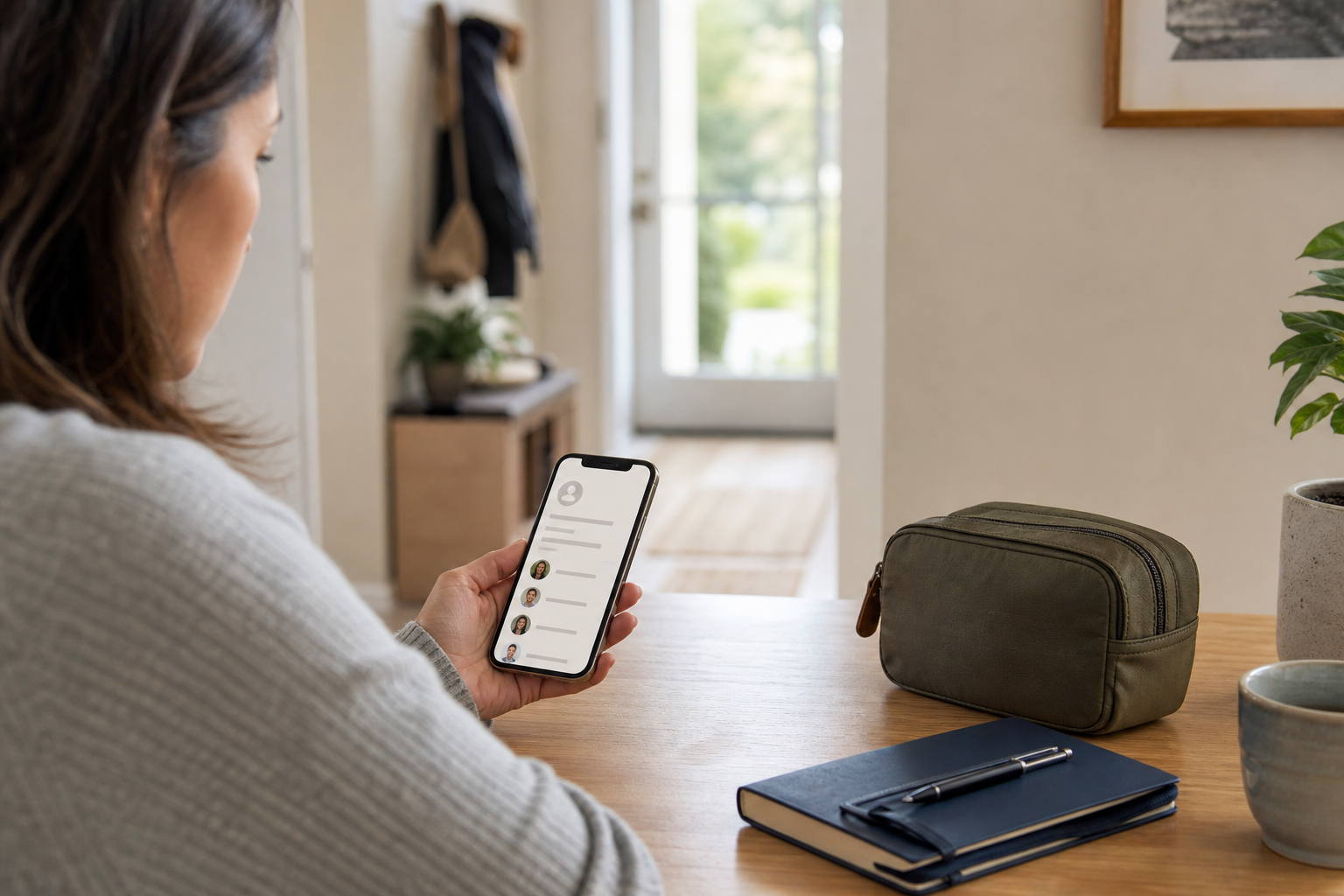
ProtectSmartly supports up to 6 contacts with priority levels. A useful contact list is not necessarily the largest one. Choose people who are likely to recognize your name, understand your usual routines, and know what to do if they receive an update. You might choose a family member, a close friend, or another person who is directly involved in your everyday plans.
Talk to those people before adding them. Explain which updates they may receive and what you expect them to do with the information. An alert to a trusted contact is not the same as a call to police, ambulance, or fire services. Do not assume that a contact is monitoring the app or is able to respond at any particular time.
Understand the difference between chat, check-ins, and SOS
Chat is available with contacts who use the app. Use it for an ordinary conversation when that is appropriate. A check-in is a separate tool: you can send it to chosen contacts or save it to your history only. Decide in advance which routines deserve a check-in and which conversations belong in chat.
SOS is for an alert workflow. To activate it, press and hold the SOS button for 3 seconds. A 5-second countdown follows, and you can cancel during the countdown. If the alert is sent, your chosen contacts receive your GPS location by email with a map link. Contacts who use ProtectSmartly can also receive a push notification.
SOS & Safety Alerts is not a replacement for calling emergency services. In an emergency, call your local emergency number.
Review the information before a trip or a change in routine
Make a quick review part of your preparation. Check that your Emergency info is current, the priority order still makes sense, and your contacts know they are included. Confirm your sign-in method, email, Sign in with Apple, or Google, and make sure you can access the account.
Also review device permissions, battery, connectivity, and notification settings. ProtectSmartly’s alert delivery depends on those conditions as well as recipient availability. A contact who uses the app may receive a push notification, while an SOS can send GPS location by email with a map link to chosen contacts. These are delivery paths, not a promise that a person will see or act on an alert.
Add useful context without overpromising
On iPhone, the Family map can show live positions for family members who accept location sharing, including battery, speed, and status. Safe places can help organize locations such as Home, School, or Work. Footsteps can help review where a family member has been today, in the last 24 hours, 3 days, or 7 days, with stops and durations. These tools may add context to a family plan, but they do not replace direct communication or local emergency services.
The Help tab detects your country from GPS and shows police, ambulance, and fire numbers. The current product brief says the feature supports 192 countries, but that coverage needs checking in the live Help tab before publication or reliance. The app presents emergency information; it does not mean ProtectSmartly dispatches police, ambulance, or fire services.
Keep the plan understandable
Write down the simple version of your plan: who receives an SOS, who receives routine check-ins, where Emergency info is stored, and when to call local emergency services directly. Revisit the plan after a move, a new job, a change in health information, or a change in your trusted relationships.
Preparation works best when everyone understands the boundaries. ProtectSmartly can help you organize information and send selected updates, but permissions, connectivity, battery, and recipient availability affect delivery. Keep your contacts informed, keep your details current, and use the appropriate local emergency number when immediate help is needed.
Important: SOS & Safety Alerts is not a replacement for calling emergency services. In an emergency, call your local emergency number.